KLIK / 002 / REA
REA: investigate software with evidence, without promising source recovery
Set up Reverse Engineer Anything via MCP: choose an analysis provider and inspect permitted apps while understanding evidence and limits.
 Hamza Elmakhfi
An old application of yours reads a configuration file, but the source matching that build is missing. You want to discover where one export setting comes from, rather than reconstruct the whole program by guessing. That is a sensible reverse-engineering starting point: a narrow question, a specific build and evidence you can revisit.
REA connects a coding agent to tools that inspect applications, files and runtime behavior. Its full name is Reverse Engineer Anything, but any investigation still depends on the available artifacts, host system and analysis tools. We reviewed the official documentation on October 25, 2026, but have not tested every listed provider and operating system.
Inspection is not original-source recovery
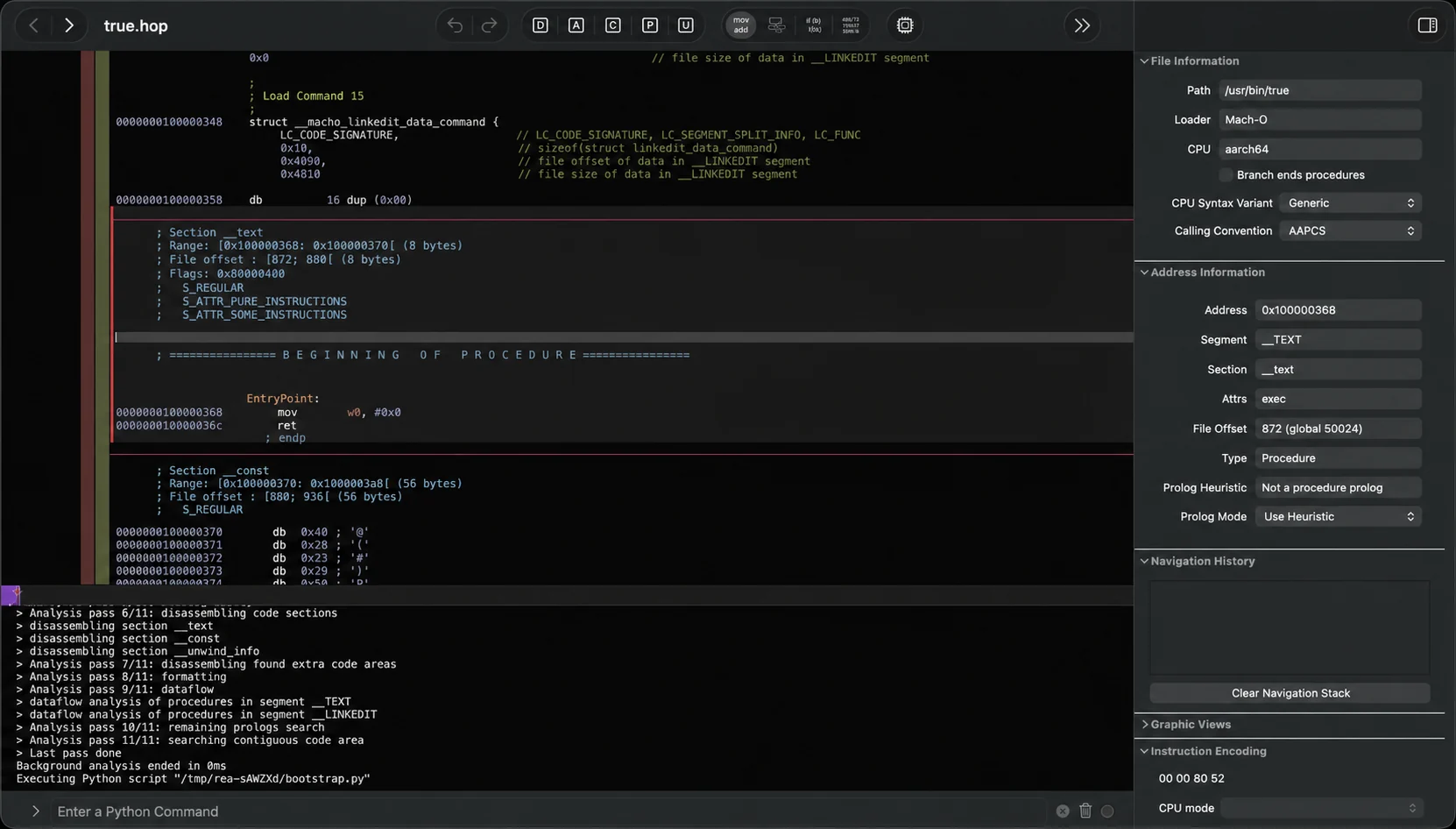
Depending on the target and provider, results can include strings, imports, modules, calls and pseudocode. Those help explain implementation. They do not guarantee original variable names, comments, architecture or a project that builds. Compilation and optimization change information; missing symbols further reduce what can be established confidently.
For JavaScript and Electron, REA can inspect application structure and module relationships. It supports static metadata and CIL inspection for .NET. Native analysis can use Hopper, Ghidra or IDA. The README describes many more targets, but an investigation of your own Electron configuration does not require installing every provider.
Establish permission and scope
Use an application you own, an appropriately licensed open project or software you have explicit permission to analyze. Define the allowed work: offline reading, running a test copy or observing network behavior in a private environment. Possessing a file does not grant permission to bypass licenses, DRM or another service's controls.
Our example is a copy of a personal application, with one question: how is the export setting loaded? Keep other people's accounts, tokens and client files out of the experiment. If you are learning from another product's behavior, confirm your rights and implement your own solution rather than copying protected code or assets.
Requirements depend on the target
The current README specifies Node.js 22.x starting at 22.23.4, 24.x starting at 24.22.1, or 26.12.1 and later, plus npm. Recheck installation documentation when you use it; the project changes quickly. An MCP-capable agent is also needed. Setup supports clients including Codex, Claude Code and Cursor, with client-specific details.
Static JavaScript inspection does not need a native decompiler. Native binaries need an appropriate installed provider, which may carry a paid license. Linux has a procps-compatible ps requirement for some workflows. Windows, macOS and Linux support differs by provider and target; follow the relevant guide. A supported REA host does not imply every analysis tool works there.
Set up the integration
- Install a supported Node.js version and npm from their official source. Open a normal terminal.
- Run the setup command published by the project:
npx rea-agents setup- Choose your agent and review proposed changes before approving. Setup registers MCP and matching workflow instructions, with backups of existing configuration.
- Restart the agent and confirm it can see REA's tools. Downloading the package alone does not prove the client loaded its registration.
- Add a native provider only when the investigation needs it. Do not approve an unexplained large download or new license.
The target application has its own source, trust and licensing requirements. Keep its installation separate from REA setup. For errors, record the client, Node version and setup message, removing secrets before sharing logs.
First investigation: read before running
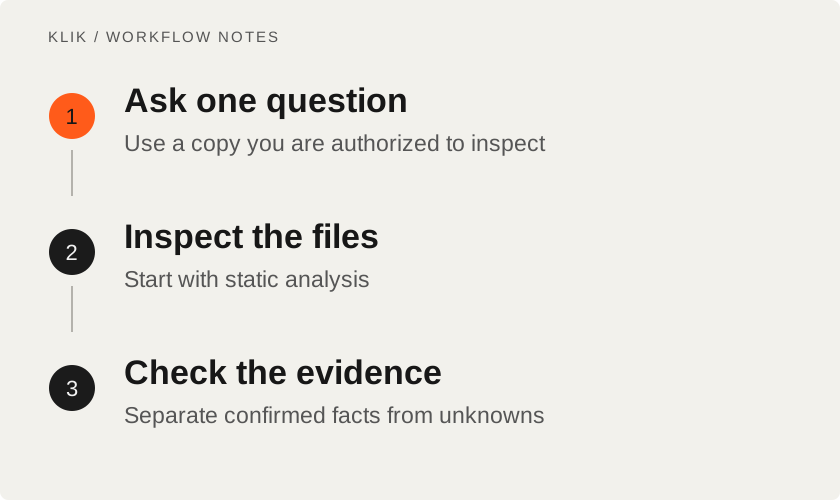
Prepare a separate copy of your application or ASAR, away from the installation used every day. Give the agent its absolute path and a limited question. Ask for static analysis first, with no application execution or file modification:
Inspect this copy of my Electron application. Find how the export setting
is loaded. Start with static analysis. Show file paths and evidence,
separate facts from guesses, and ask before running or modifying anything.
This is our suggested investigation prompt, not a built-in REA command. Look for file paths, functions or modules and their connection to the setting. If the answer only says "it appears to," ask where the setting is read, what its default value is and where it is used. You should be able to follow that explanation in the files yourself.
For a terminal workflow, the README supplies this JavaScript application inspection command. Replace the path with your own copy and quote paths containing spaces:
npx -y rea-agents@latest analyze-javascript-application /absolute/path/to/app --jsonOn Windows, supply an actual quoted absolute Windows path. The -y option allows npx to continue package installation without its confirmation prompt, so review the official source first. Static inspection is not blanket authorization to execute everything it discovers.
Decide whether the evidence answers the question
Separate confirmed file evidence, plausible inference and remaining unknowns. Finding a setting name in a string is only a lead: it could be unused code. Trace where that build loads the setting and where its export code uses the value.
If a remaining question requires runtime observation, use a test environment and empty account with permission for the specific action. Static inspection reads files. Runtime capture may write data, access the network or interact with the UI using your permissions. Record that distinction and avoid presenting inferred behavior as directly observed.
Costs, privacy and practical limits
Before ending the investigation, request a short note another developer could follow without the whole conversation. Record the build, evidence location, question and step that confirmed the answer. Keep confidence limited when a conclusion cannot be tied to a file or observation.
If the default export value is visible but changing it has not been tested, say exactly that. It is more accurate than claiming the whole export workflow is understood. Recheck evidence when the build changes rather than copying an old conclusion. Making the unknowns explicit prevents the repair from starting with a hidden assumption.
REA uses the MIT license, but the agent, model provider or native analysis application may require payment. Local analysis also does not mean evidence never leaves the computer: a cloud agent can receive files or snippets placed in its context. Check confidentiality terms, permissions and data handling before professional work.
Packed or obfuscated code, missing files and version differences can limit or stop an investigation. Keep the target version and evidence together for repeatability. When a tool fails, narrow the question before adding more tools.
REA is useful when an authorized technical question needs an explanation supported by evidence. If the investigation informs a repair, follow it with the pre-deployment checks. Understanding a change and proving it works are complementary tasks.
Keep reading
All KLIK guides
KLIK / 003coding agents · English
Best Vibe Coding Tools & Workflows: From Questions to Tested Code
A field-tested comparison of the best vibe coding tools—Grill Me, Superpowers Brainstorming, Mobbin MCP, Ponytail, and Context7—with practical workflow stages, a comparison matrix, and real production limitations.

KLIK / 004deployment · English
Six checks before deploying your app: evidence, backups and a way back
Six practical release checks for small apps: critical paths, secrets, production builds, restore tests, and rollback planning.