KLIK / 010 / Stirling PDF
Stirling PDF: combine and review documents while knowing where processing happens
Install Stirling PDF for merging, OCR, and redaction. Understand Local Only vs Cloud processing, privacy boundaries, and licensing.
 Hamza Elmakhfi
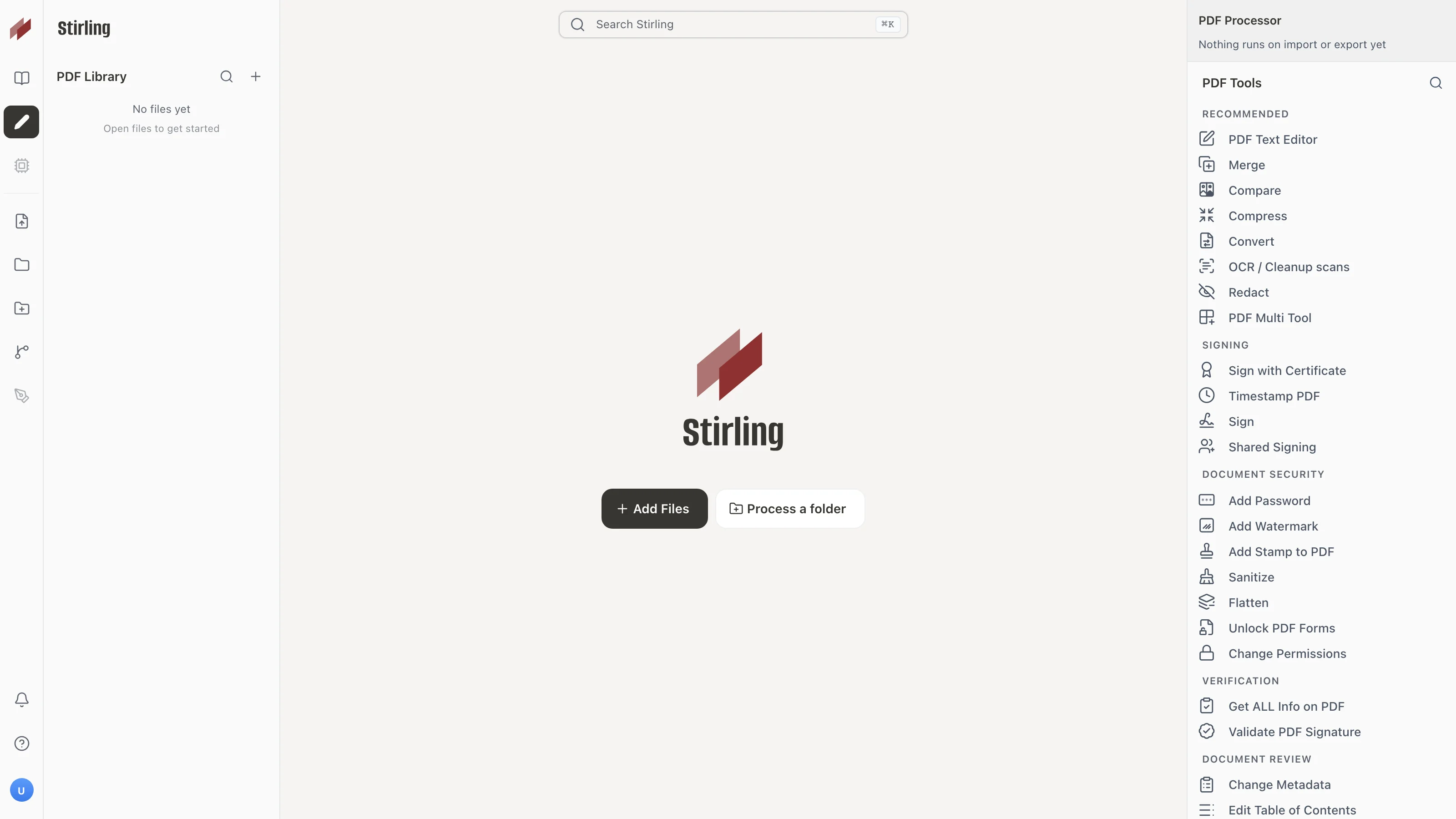
You visit one website to combine PDFs and another to compress the result. You lose time and upload copies of your documents to services whose data handling you may not have checked. Stirling PDF groups many of these operations and offers desktop and self-hosted paths. Getting privacy benefits still requires understanding where each operation runs.
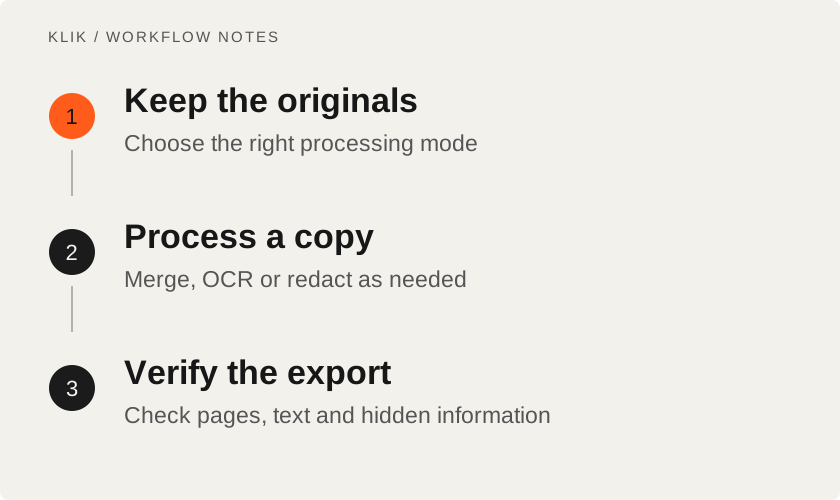
This guide follows official sources reviewed on October 25, 2026. We have not tested every tool. Before opening a sensitive document, check the settings even if the interface appears to run locally. Start with two sample files, then move into OCR and redaction, separating simple page work from operations requiring a backend.
Pick the operation you actually need
Depending on configuration and mode, tools include page organization, merge, split, compression, conversion, annotations, OCR and redaction. The benefit is completing a task and reviewing it without passing the file through several unrelated services.
Combining a CV, letter and portfolio needs page order and export review, not necessarily AI. A scanned document is different: OCR adds searchable text to page images rather than restoring the original editable document.
Local Only, Cloud and self-hosting differ
Desktop documentation distinguishes Local Only, Stirling Cloud and Self-Hosted. In Local Only, supported built-in tools run on your computer. Tools requiring a backend may ask for sign-in or a server connection. A visible button is not proof it can finish offline.
Cloud mode runs some tools locally and sends others to the service. Self-hosted processing runs on your connected server even when the interface is on your laptop. Your server may be at a hosting provider, so account for its access, logs and backups.
Current documentation lists OCR and several conversions as usually requiring Cloud or a server. Installing Desktop alone therefore does not guarantee local OCR without additional setup. Check Connection Mode and the tool's processing indicator before opening personal material.
Install the desktop application
- Open official Desktop installation instructions or repository Releases and choose your platform and architecture.
- Windows documentation lists Windows 10 and 11. x64 has an MSI; Windows ARM has its own installer.
- Follow the official DMG route on macOS or a documented distribution package on Linux.
- For a local experiment on an installation not managed by an organization, choose Continue without signing in and confirm Local Only in settings.
- Test non-sensitive material before connecting an account or server. An installed interface does not prove every backend is ready.
The Windows guide also documents Winget for x64:
winget install StirlingTools.StirlingPDFResource requirements depend on operations and file sizes. OCR and Office conversion differ from rotating one page. Server documentation provides image-specific guidance; the ultra-lite image, for example, does not include OCR. The smallest package does not necessarily include every tool.
A Docker trial for experienced users
With a working Docker installation, the following uses the README's official image and Docker's documented loopback binding, avoiding the default of publishing the port on every host interface:
docker run -p 127.0.0.1:8080:8080 docker.stirlingpdf.com/stirlingtools/stirling-pdfOpen http://localhost:8080 on that machine. This is a trial, not production configuration. Review sign-in, persistent storage, backups, updates and firewall settings before shared use. Docker documents loopback caveats in older releases, and this binding alone does not guarantee complete isolation. Check your Docker version and configuration too. Use the deployment checks before public exposure.
First use: merge two files
Prepare clearly named copies. Open merge or the page editor as appropriate, add both PDFs and order the pages. Inspect the transition from one document to the next. Export with a new name, preserving originals.
Open the result in another PDF reader. Check page count, orientation, text, images and important links. After compression, inspect fine detail such as invoice numbers. The smallest file is not always the best deliverable. A completed download is not a reason to delete originals.
Edits can affect the technical validity of digitally signed or protected files. Review according to the intended use and distinguish an image of a signature from certificate validation. This is a technical workflow, not a legal judgment about signed documents.
OCR needs a text review
With an appropriate backend, open OCR / Cleanup scans and select the document languages. Auto skips pages with existing text layers; Force reprocesses them; Strict stops when text is found. These choices change what is processed.
Run Process OCR and Review, then search for a word and copy a sentence. For Arabic and French documents, inspect names, digits and direction. A tilted or unclear scan can produce selectable but incorrect text. If a self-hosted server lacks a language, ask its administrator to review language data rather than quietly moving confidential material to Cloud.
Redaction is more than a rectangle
Use the redaction tool, mark text or an area, apply the pending redactions and save a new copy. Unapplied marks are not a finished redaction. Do more than look for a black box: search and copy from the exported result and inspect all affected pages.
OCR and word matching can miss alternate spelling or information inside images. Review the full scope. Keep the original protected and label the redacted copy clearly. If you redact something by mistake, the permanently redacted copy cannot restore it. Return to the protected original and repeat the operation.
Licenses, costs and trust
Stirling PDF is currently open-core. LICENSE applies MIT to material outside listed exceptions, while named directories carry separate terms. Do not call the entire product unrestricted MIT or every feature free. Cloud, Processor, AI and server plans have documented conditions and allowances; check the path you intend to use.
The application is useful for grouped PDF work with an understood processing location. It does not replace judgment about confidentiality or output quality. Start with test copies, choose the right mode and inspect exports. For application documents, AI Job Search connects organization with writing while keeping submission and personal information under your review.
Keep reading
All KLIK guides
KLIK / 004deployment · English
Six checks before deploying your app: evidence, backups and a way back
Six practical release checks for small apps: critical paths, secrets, production builds, restore tests, and rollback planning.
KLIK / 006Pinokio · English
Pinokio: simpler AI app setup, with a clear view of script trust
Install Pinokio, inspect script sources, and run supported local AI apps while separating install success from private utility.

KLIK / 007job search · English
AI Job Search: prepare a tailored application without inventing a career
Set up AI Job Search privately: assess postings, tailor resumes, and prepare for interviews while managing API costs and personal data.